Extracting the game files
2 minutes read
To extract the game files, we will use Razviar’s branch of Assetstudio, which has a very useful feature to extract characters.
Mapping the assets
First, we will create an asset map which will allow us to search for items without having to load all of the game files each time we need to consult them. This will follow the documentation.
- Open Assetstudio.
- Click on
Misc.and enter the name of your map in the first text box.
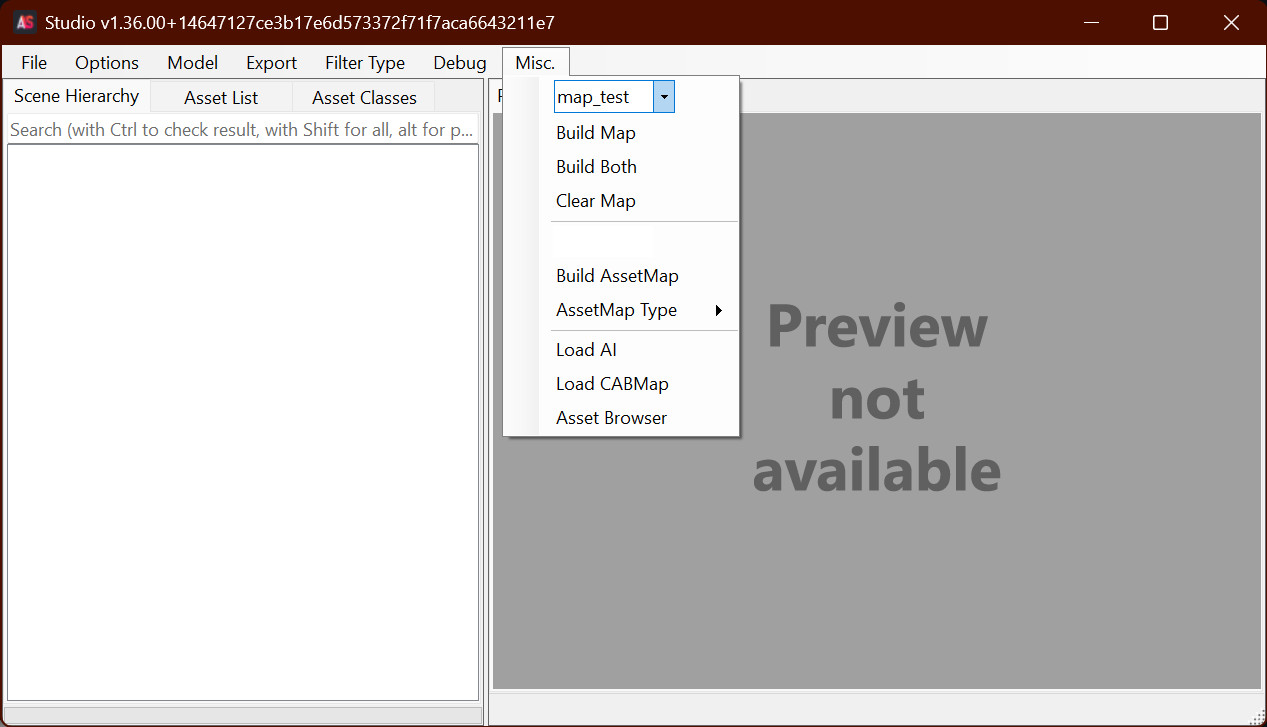
- Click on
AssetMap Typeand pickMessagePack - Click on
Create both, two windows will open :- Choose your game files folder. For me it’s in C:\Battlestate Games\Escape from Tarkov\EscapeFromTarkov_Data.
- Choose your output folder where the map will be stored. The documentation recommends to avoid choosing the game files folder as it could cause issues.
- Wait for the process to finish. Tarkov is a big game so it might take a while…
Finding and exporting the assets
Once the asset map has been completed, restart Assetstudio. You can also start from this step if you already made the map previously.
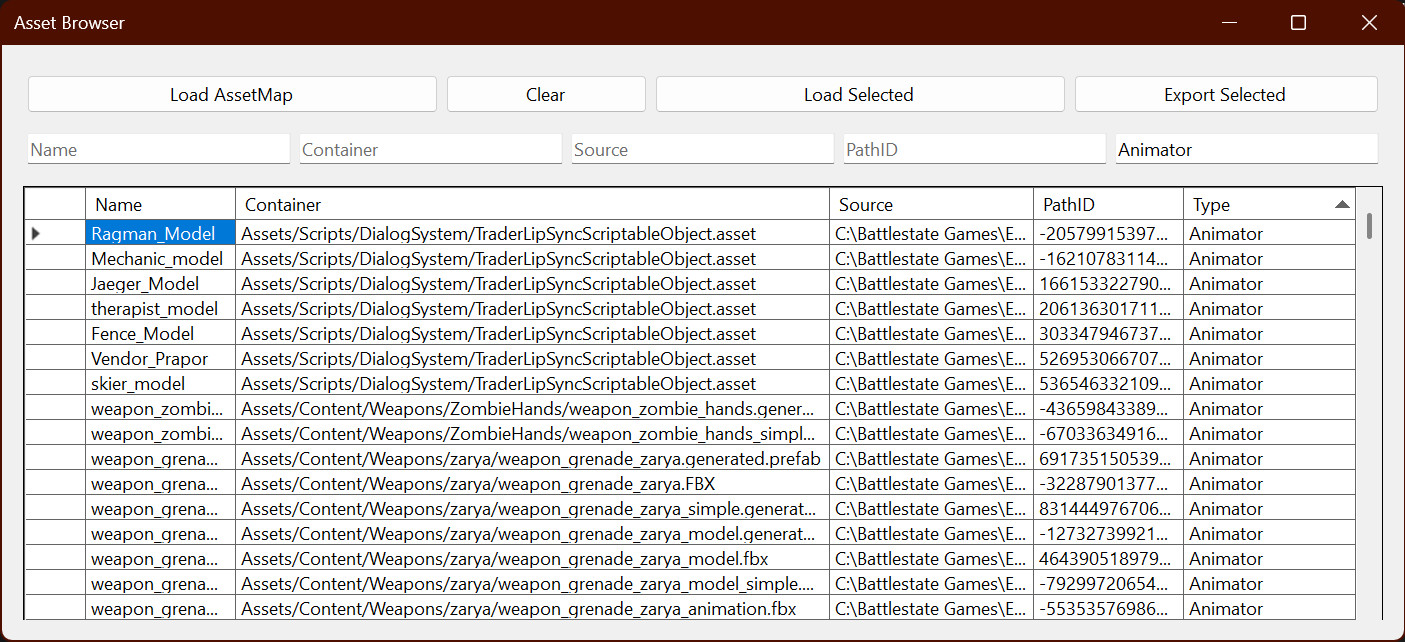
- Click on
Misc > Assetbrowser. This opens a new window. - Click on
Load Assetmap, select your map and wait for it to load in Assetstudio. This can take a few minutes. - In the Type text box, enter
Animatorand press Enter. This will search for files with animated characters. - Select the line(s) you want by clicking the first column, then click
Export selected, and choose an output folder. In this example we will export Ragman.
Important
The files we are looking for are present multiple times in the list and some of them will export nothing. The one that works has a non-empty
Containercolumn like in the picture below.
- Wait for the process to finish. The files should now be in the output folder.
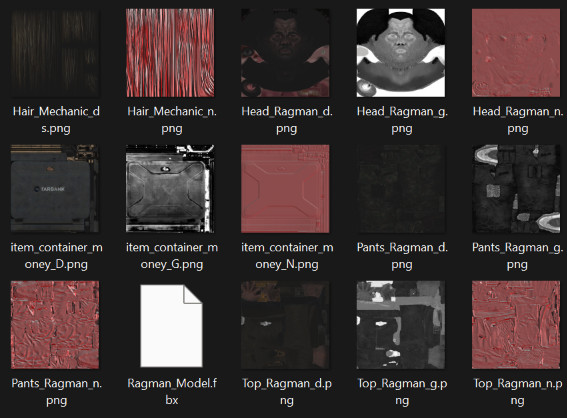
- I prefer to reorganize the files by putting all the textures into a separate folder.