Python in Blender
4 minutes read
In this section I will write a short introduction to Python scripting in Blender so that you can read the code if you are interested.
Resources
Usually, when I start doing something I do not know anything about, my general starting point is :

In this case the manual is the Blender Python API documentaion. But it is not easy to navigate through it, so I would actually recommend watching a few tutorials first, like CGPython’s, to familiarize yourself with the syntax. There is also a good Blender conference video about Python scripting, it is a bit long, but very complete and very useful to learn a proper workflow.
I found that the best way to use the official documentation was to look at the data types to learn what functions are available. For example, here is the page describing what you can do with materials.
Syntax and logic
Python scripting can basically do everything you do with your mouse and keyboard.
Start by going to Edit > Preferences > Interface and enable Python tooltips and Developer extras. Python tooltips allows you to view, on each element of the UI, which Python command you need to do the same thing.
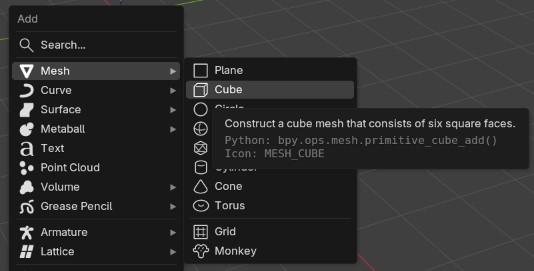
Let’s write an example script. Here is a scene I made using the image from earlier as a texture on a cube.
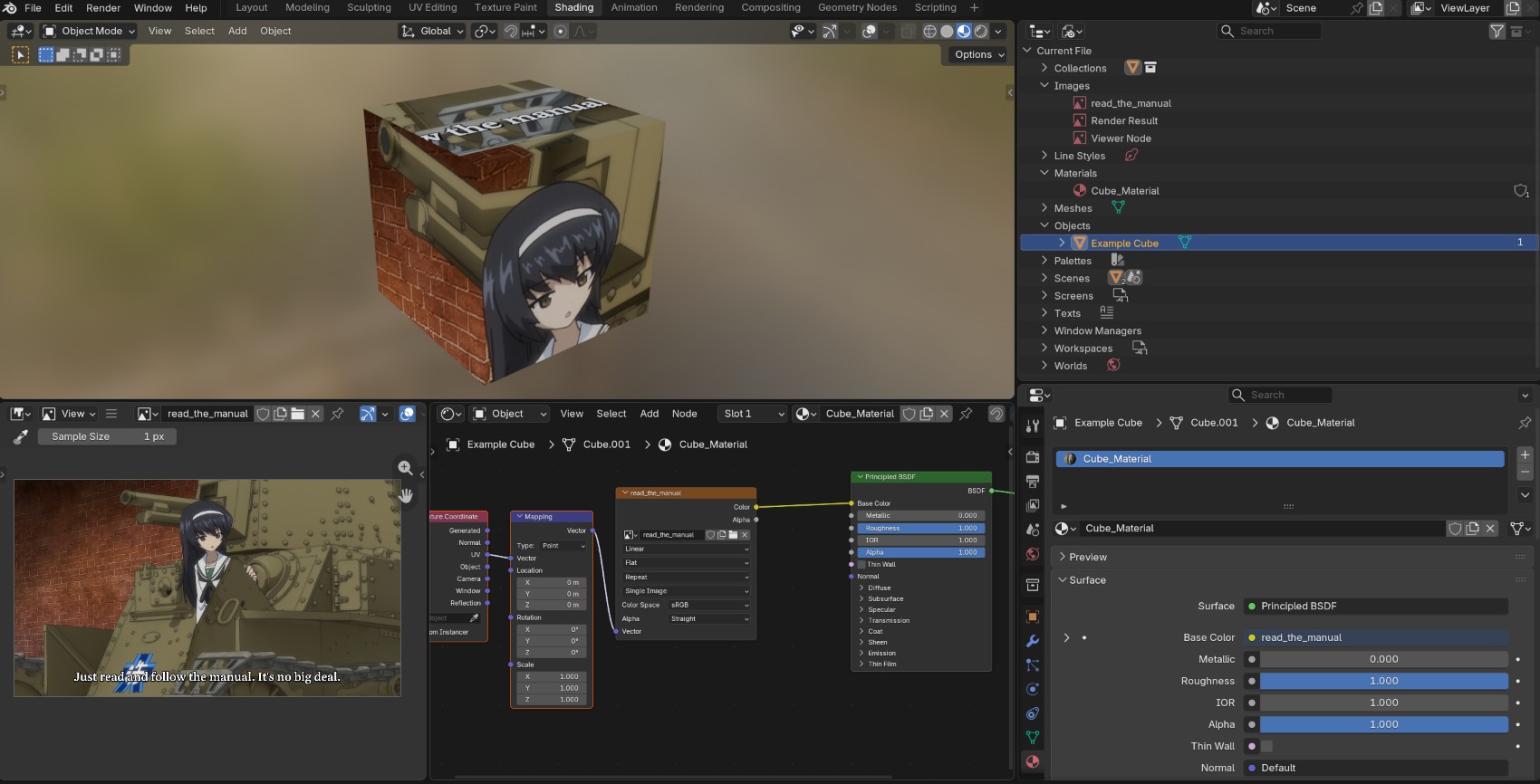
To see the data contained in the file, go to the outliner and change the display mode to Blender file. On the previous image, this is the window on the top right. As you can see, we have an Object named Example Cube, a Material named Cube_Material and an Image named read_the_manual.
How do we access this data with Python ? Below is an example of script. To visualize the output, use Window > Toggle system console.
# Import the blender python module
# Loop over all materials in the scene
# Prints the material name
=
=
# Creates "shortcuts" to the data
# Loops over all the nodes in the node tree
# If the node is an image texture,
# print the node name and the image name
The output is the following :
Every script starts by import bpy which is the module used by Blender. Then, you can access the data in your scene by using bpy.data. Then we create a loop to examine every material in the scene. For each loop, we print our material name and search for image textures among the material node tree. For each image texture, we then print the node name and the image name.
So what is actually happening ?
bpy.data.materials is a list of all materials that can be adressed either by their index or by their name. Here we only have one material, we could write Mat = bpy.data.materials[0] or Mat = bpy.data.materials["Cube_Material"]. Then we can use “Mat” as a shortcut to access the properties of the material. In the case of our example script, we print Mat.name to check the name of the current material.
Our material object Mat has different properties itself, for example Nodes = Mat.node_tree.nodes. In the same way, the individual nodes can be adressed by their index or their name. Using this new variable makes it easier : here, Nodes[0] is equivalent to Mat.node_tree.nodes[0] and even bpy.data.materials[0].node_tree.nodes[0], but it is much shorter !
In the example script we access the node type with .type to check if it is an image texture. node.image allows to access the image object currently ontained by the image texture node. This is why node.name and node.image.name print different things, they refer to entirely different objects.
Other objects follow the same logic. For example :
=
This code will print “MESH” because our cube object is a mesh.