Special materials
3 minutes read
Materials with color data
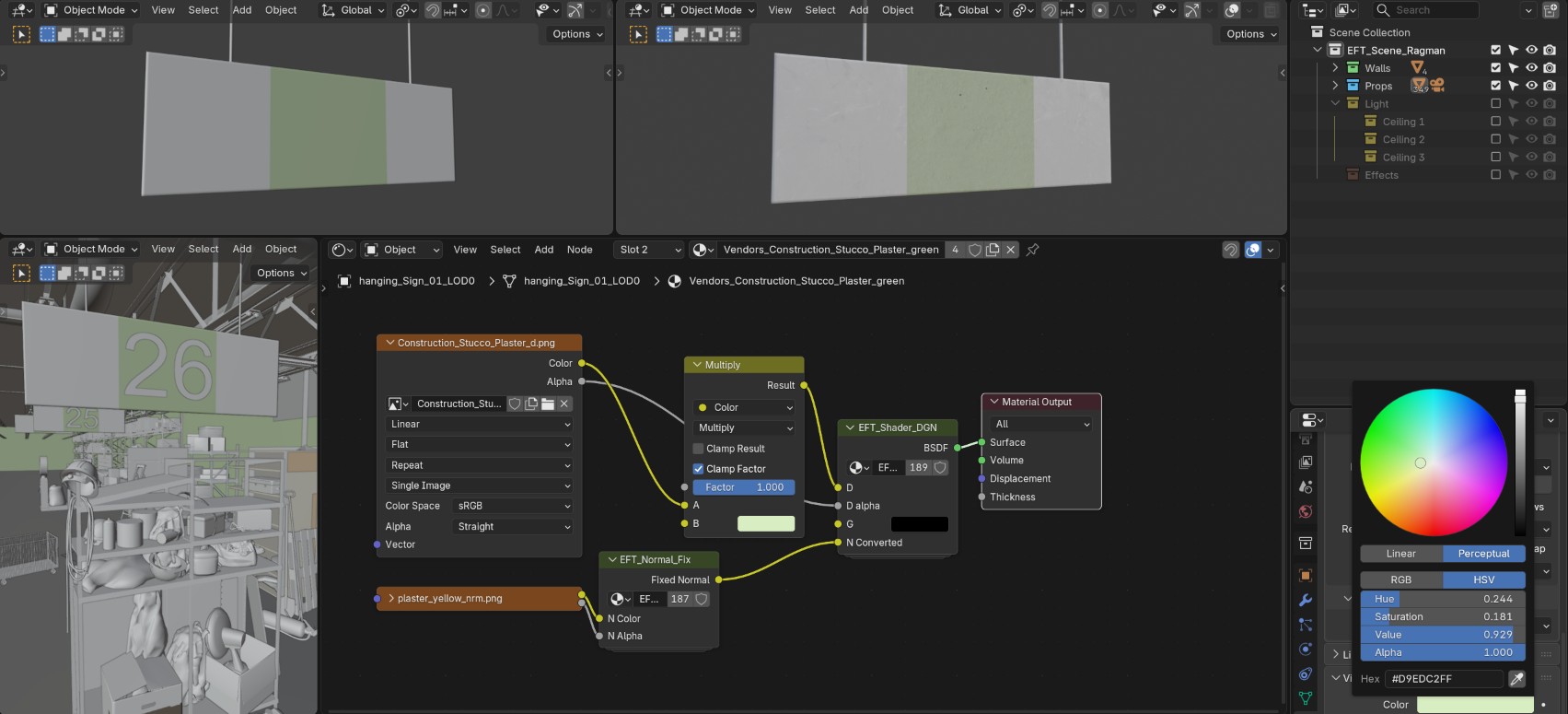
Some materials have a white texture and must be colored using data contained in Material Properties > Viewport Display > Color, which gives them a non-white color in the 3D Viewport with Solid shading mode. When this is the case, the Tark to Blend add-on automatically adds a color multiply node with the corresponding color to fix the color of the material.
Below is an example of such material : a sign from Ragman’s shop, which has its central section colored in green. The walls from this scene are also colored in the same way.
VP materials
When porting Factory, I discovered that certain materials where actually a combination of different materials, which are often differientated by their “_VP” suffix. The material is assigned based on vertex painting data, which can be accessed with the Color Attribute node in Blender. But assigning the materials based on the vertices alone would give a low-resolution result.
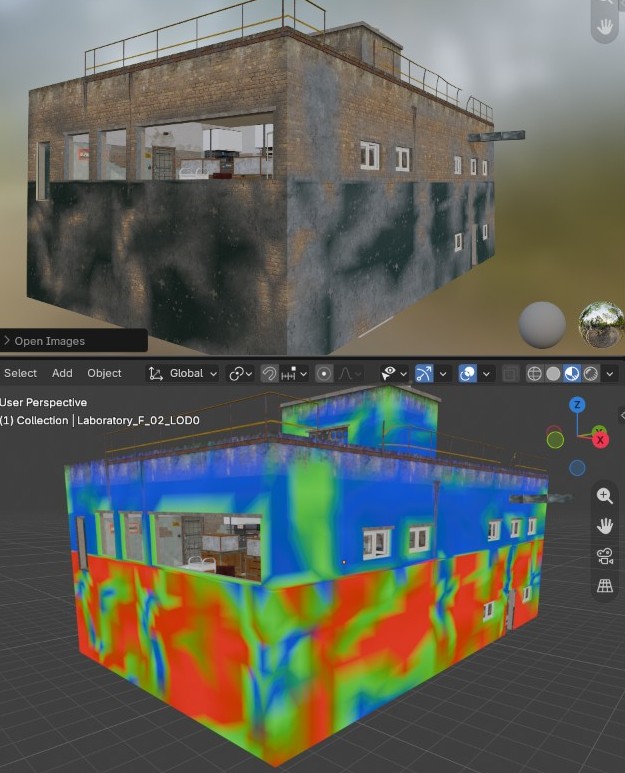
To add detail, Escape from Tarkov uses special textures, which can be recognized by the “MASK” in their name and their weird bright colors. Each channel contains a pattern which will be used to decide which material must be displayed.
The difficult part was figuring out how to combine the Color Attribute and the MASK texture to create two Factor outputs which could be used with two consecutive Mix shader nodes. In my inital attempts, I made a lot of image operations (multiplication, substraction, arbitrary map ranges, etc.) without getting to a satisfying result : I was getting “material gradients” which looked quite ugly. The reason was that this kind of material is used as “layers”, in this example a layer of paint on top of a layer of cement, on top of a brick wall.
Seeing this, I started over with these objectives in mind :
- The masks must be binary (strictly black and white) ;
- The node setup must be simpler, a few nodes per color channel ;
- The node setup must be mostly symmetrica between color channels, because I didn’t know why it shouldn’t be.
The easiest way to get binary masks is to compare two values with the Greater than node, which has guided my reasoning. I ended up finding this node setup : 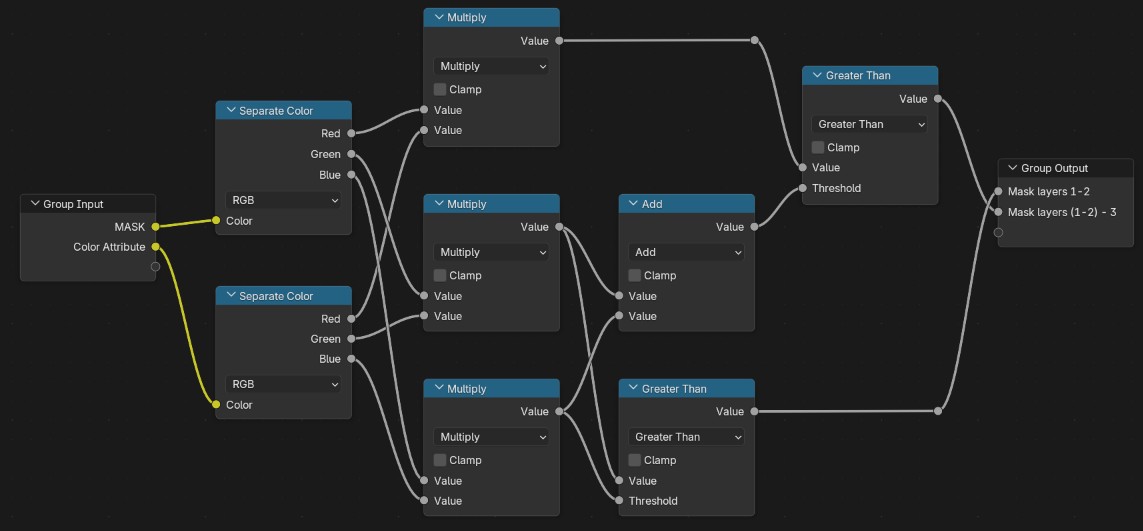
Each color channel of the Color attribute is multiplied with the corresponding color channel from the MASK texture. These masks are used to compare the materials.
First, the Blue and Green masks are compared with a Greater than node. This gives a binary mask that can be used with a Mix Shader node to put the Green material on top of the Blue one.
Similarly, the Red mask and the sum of the Blue and Green masks are compared with a Greater than node. This gives a binary mask that can be used with a Mix Shader node to put the Red material on top of the other ones.
The image below shows the original building, the MASK texture, the final result and the detailed mask : 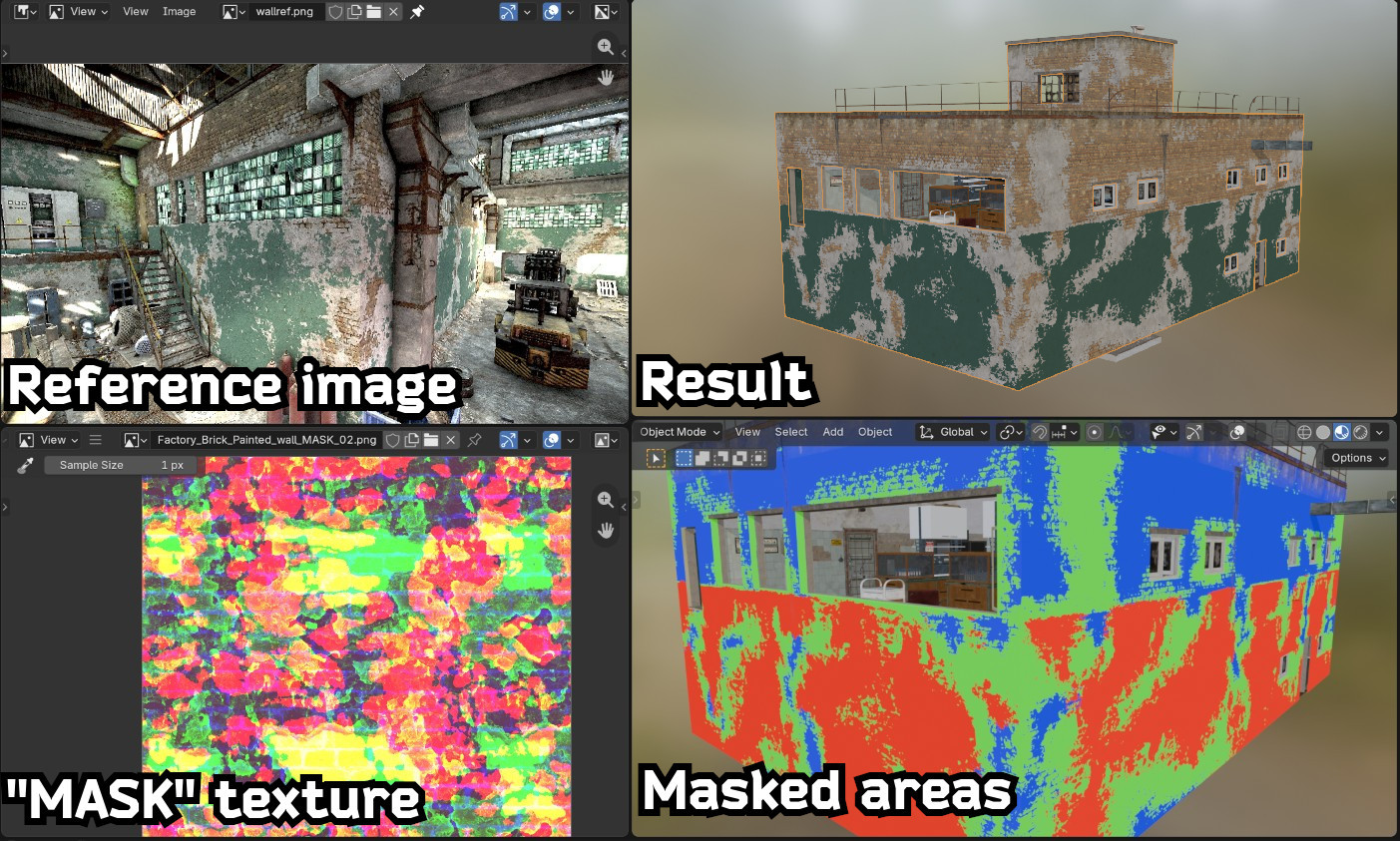
If you compare the result with the original building from the game, you’ll notice they are not exactly the same, but they’re still quite close, so I’m happy with this result.