How to use
8 minutes read
These instructions can also be found on my Github.
Check my Open3DLab profile to see the stuff I already ported to Blender.
Requirements
- The game Escape from Tarkov downloaded on your PC.
- Assetstudio. The original version is not maintained. I recommend aelurum’s fork or Razviar’s fork. Razviar’s version has a mapping function that is useful for exporting characters.
- Blender. The add-on was tested on 5.2.0.
How to install
- On the main github page, click the green Code button and select Download ZIP.
- In Blender, go to Edit > Preferences > Add-ons. Click on the arrow button and select
Install from disk.
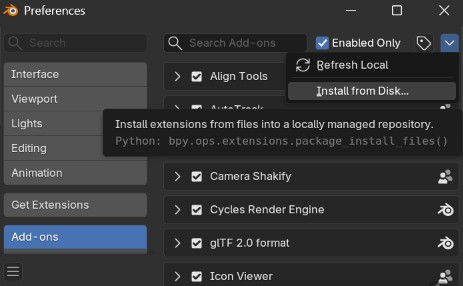
- Select the ZIP folder you downloaded on Step 1.
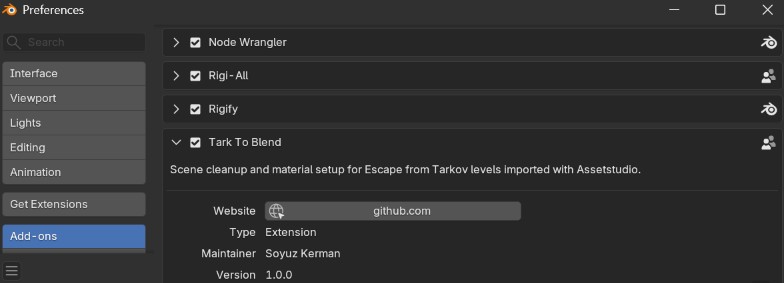
- Check if the add-on appears in your add-on list :
How to use
Getting level files
- Select a map of interest in the Map List. This map list was built based on DrakiaXYZ’s Map Info Extractor. As an example, we will choose the Ragman scene contained in the
level643file. - Load the level file in AssetStudio :
- File > Load file, then go to the game folders and select the file :
Escape from Tarkov > EscapeFromTarkov_Data > level643 - Wait for a few minutes for the assets to load.
- In Scene Hierarchy, tick the box next to the level file.
- Click
Model > Export selected objects (merge)
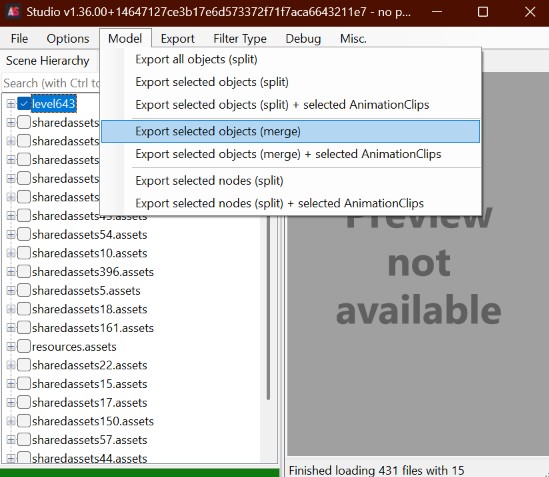
- Choose a folder to save the scene as a .fbx file. I like to rename the file with the name of the level to remember where it comes from.
- The output folder opens automatically once the process is over. It should contain a .fbx file (containing geometry and material data) and PNG texture files.
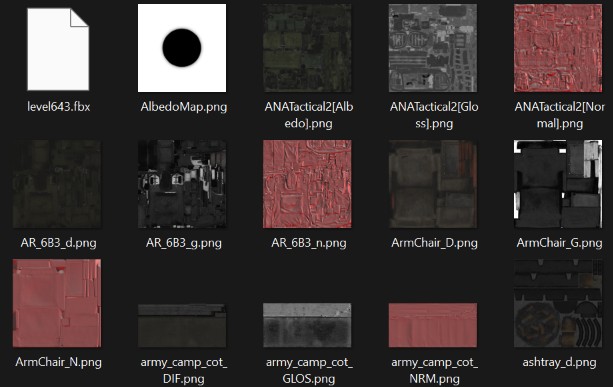
- Optional : I prefer to keep the textures in a separate “textures” folder to be able to find the .fbx more easily.
Note
The normal map textures are red. This is normal and the material setup takes it into account.
Using the add-on
- Start from an empty scene in Blender.
- Drag and drop the .fbx file in the scene to import it. It should look like this :
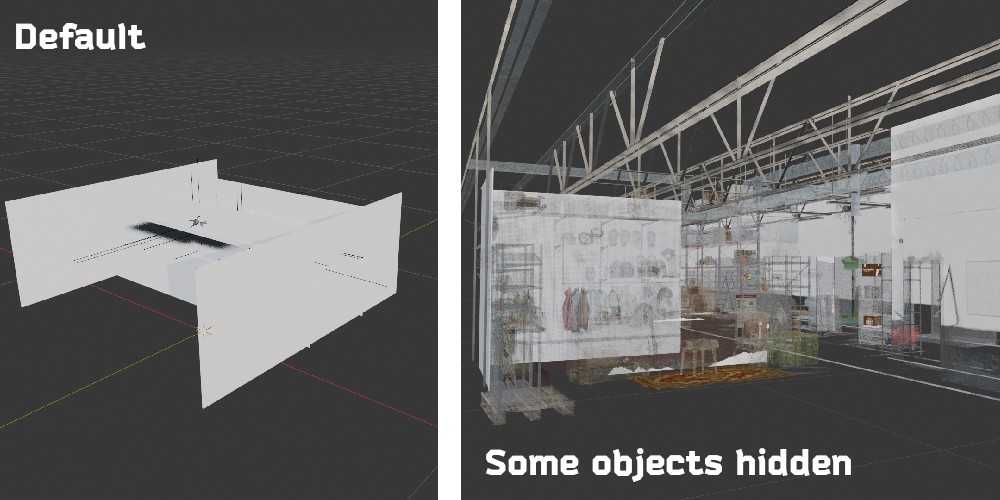
The actual scene is hidden behind objects that will be deleted by the add-on. If we hide them, the actual scene becomes visible. By default, the objects look transparent because Blender interprets the alpha channel of the texture as transparency, when it is not. This will be fixed by the add-on.
- If you previously put the textures in a separate folder, check if the textures are missing by using Material Preview. If everything is pink, the textures are missing. Go to
File > External data > Find missing files, and select your “textures” folder. - In the 3D Viewport, press N to open the side panel and go to the
Tark to Blendpanel.
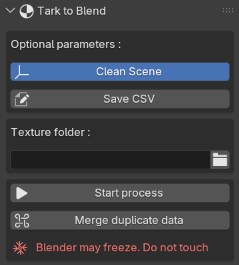
- To use the panel :
Clean scenewill remove all empties. This is recommended for maps, but not characters as it will break some animations (more precisely, the item animations).Save CSVwill create a CSV file with all material properties in your “textures” folder. This is intended for debug and you do not need to use it.- Click on the folder icon to indicate the path to your “texture” folder. This is where the program will search for missing textures. This is mandatory.
- Before starting the program, you can toggle the Blender console in Window > Toggle system console.
- Click
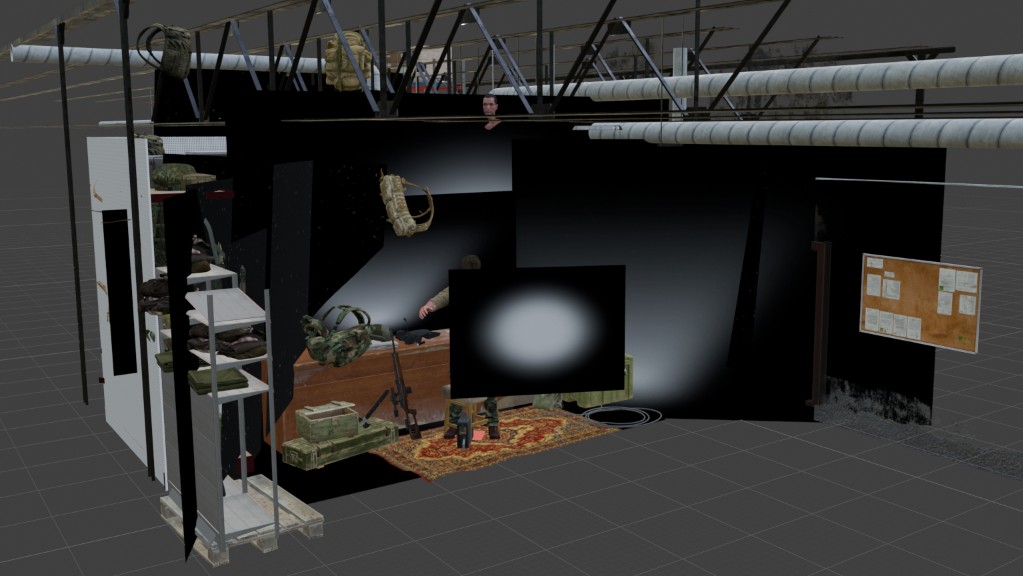
Start processto start the automatic cleanup and material setup. Do not click anything in the Blender interface until the Start process button turned to gray again. You can follow the progress in the console if you activated it. - During the process, the scene is scaled from 0.01 to 1. Look around to find it if it moved. The scene should now look like this :
Manual Cleanup
Delete the character and leftover objects. In this example we have Ragman and some random backpacks flying around.
Create collections to sort the objects. I like having a Walls collection to be able to hide them easily, and a Effects collection where I can hide the volumetric textures that we do not need in Blender. Now we can see a bit clearer :
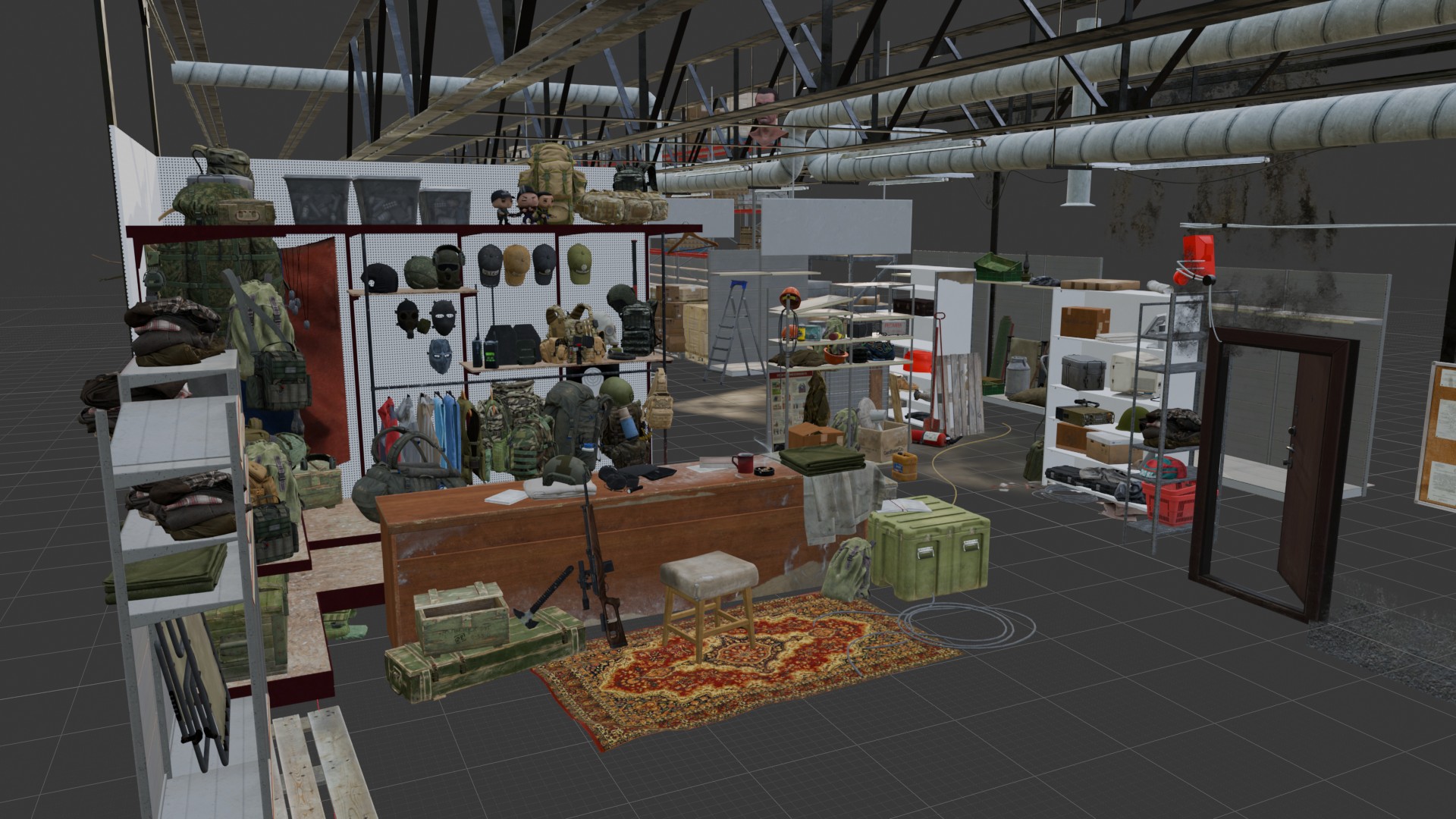
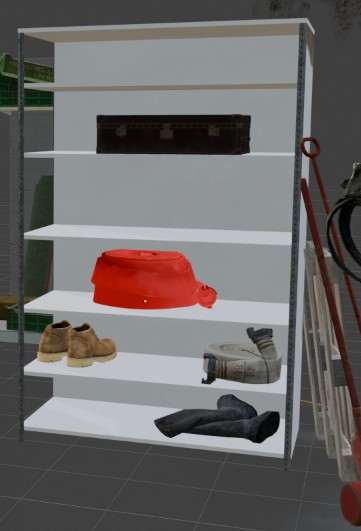
- The bright red objects have missing textures. If it’s simple, you can create it (for example, a solid color material or the glass material for a wall clock appearing on some levels). Otherwise, hide/delete it.
- Combination of textures : Some materials use a combination of textures combined by masking and vertex painting, they are called VP Materials. Such materials should be detected by the add-on and appear as blue in the 3D viewport with
solidshading. Otherwise, it will appear as red inmaterialshading (missing textures). An example is shown below.
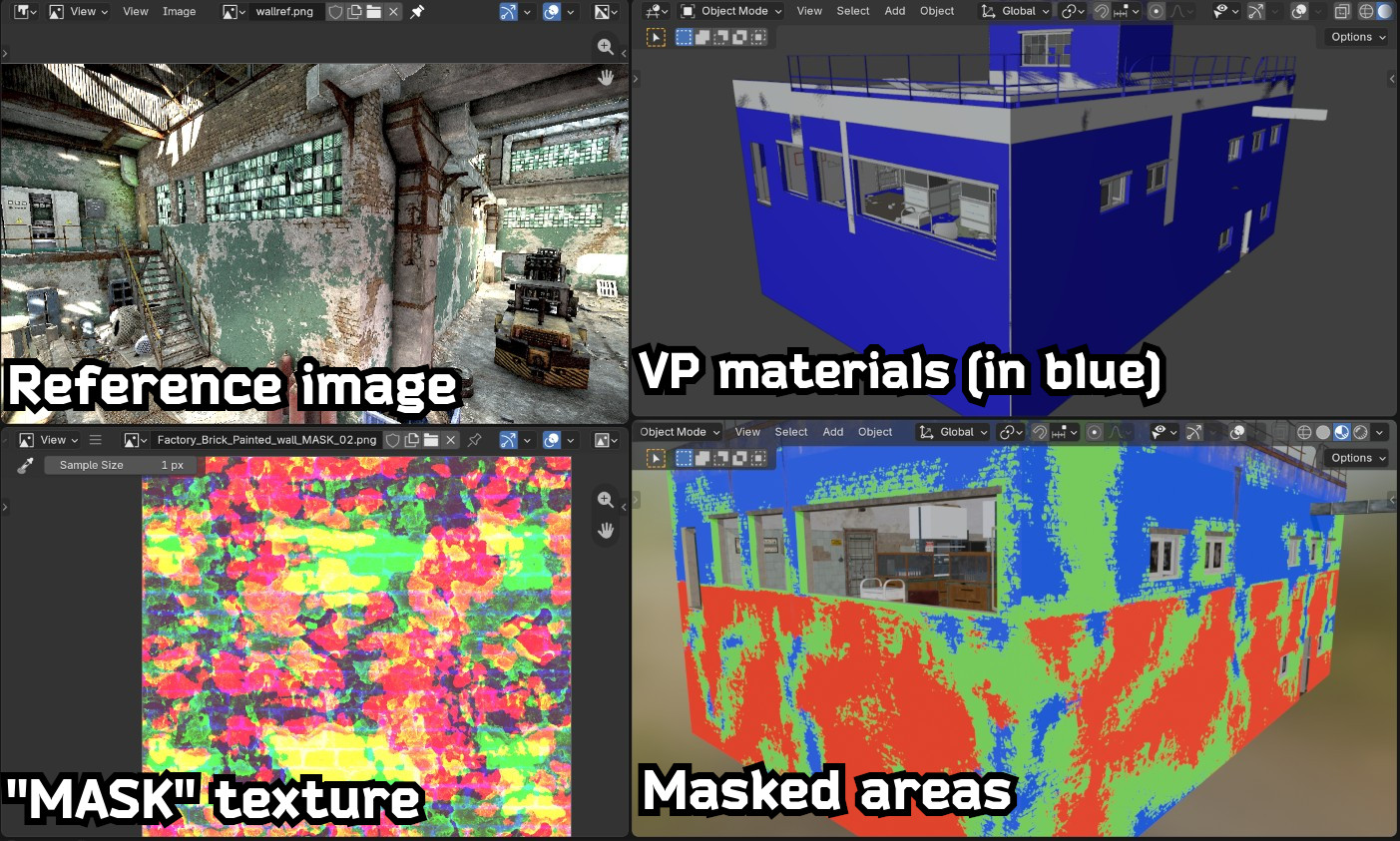
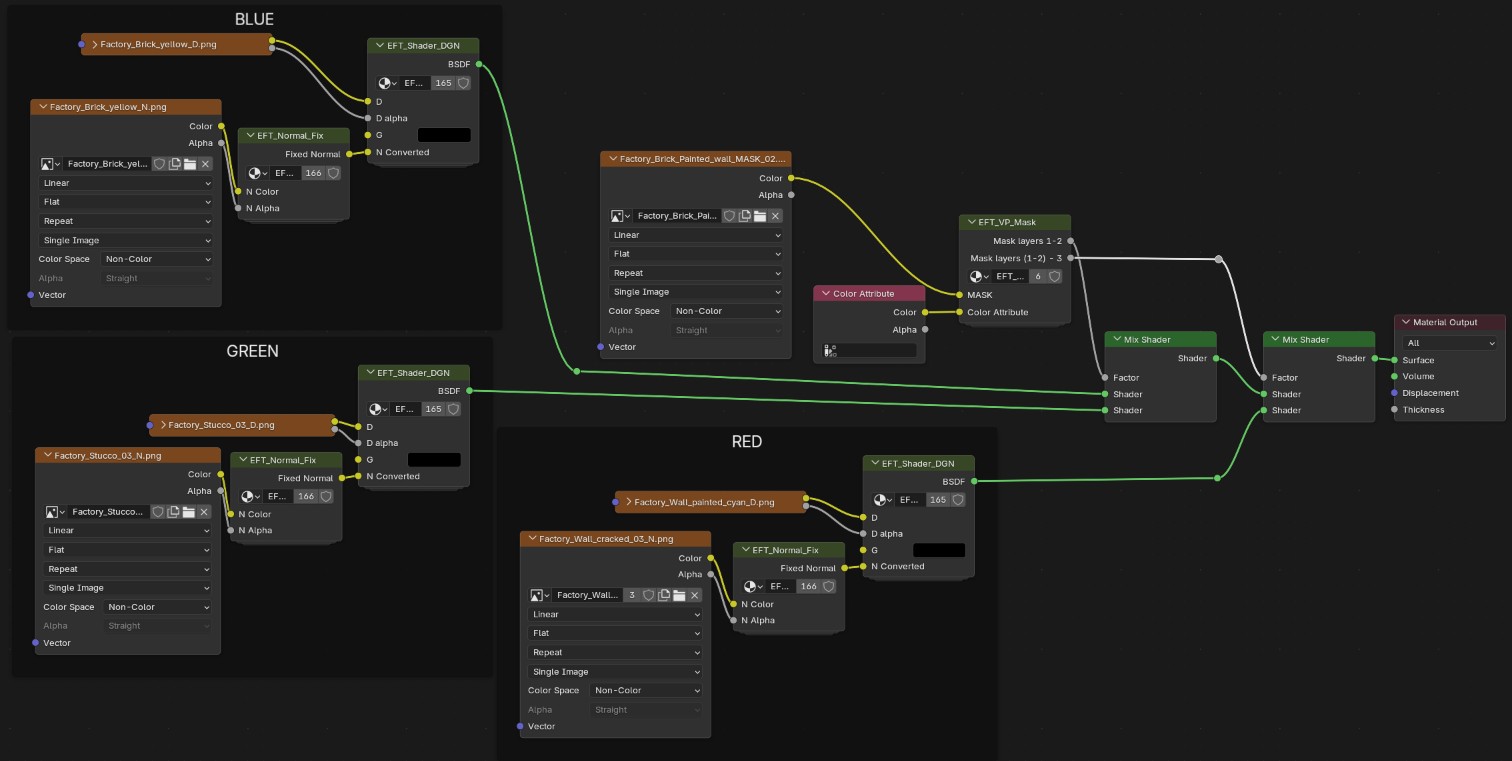
When a VP material is detected, a node setup is loaded in the Shader Editor. It must be manually completed with different textures :
- A “MASK” texture must be plugged into the EFT_VP_Mask custom node group. Once it’s done, the areas corresponding to each of the three materials will appear as red, green and blue in the viewport with
materialshading. - At least three textures must be added, one diffuse texture for each material, located in the RED, GREEN and BLUE frames. Generally, six textures will be needed (a diffuse and a normal map per material).
- The “MASK” texture and the normal maps must be set to non-color mode.
To know which textures to add, use reference screenshots from the game. The material name is usually close to the “MASK” texture name and to one of the materials involved. The result of the EFT_VP_Mask group can also be used for comparison with a reference image.
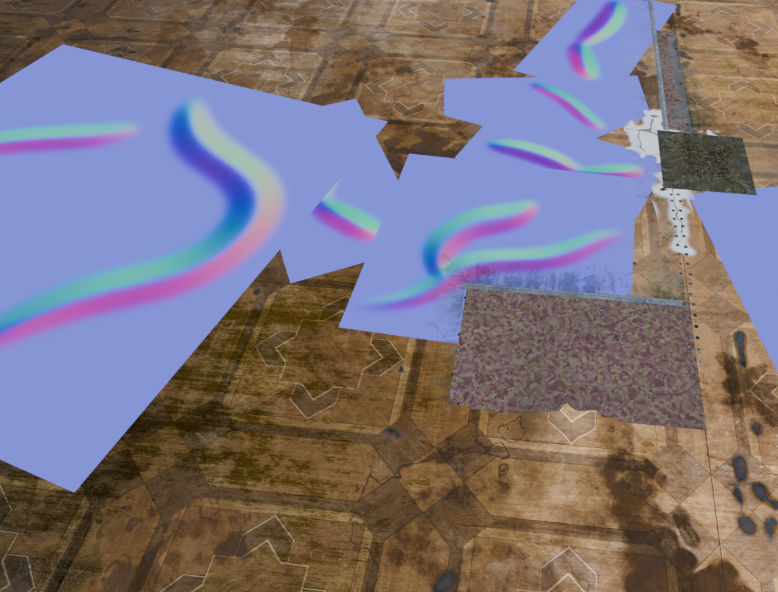
- Remove detail maps leftovers. These are normal maps without diffuse textures. I am searching for a way to use them (see this BlenderArtists thread), but for now I just plug a
Transparent BSDFand forget about them.
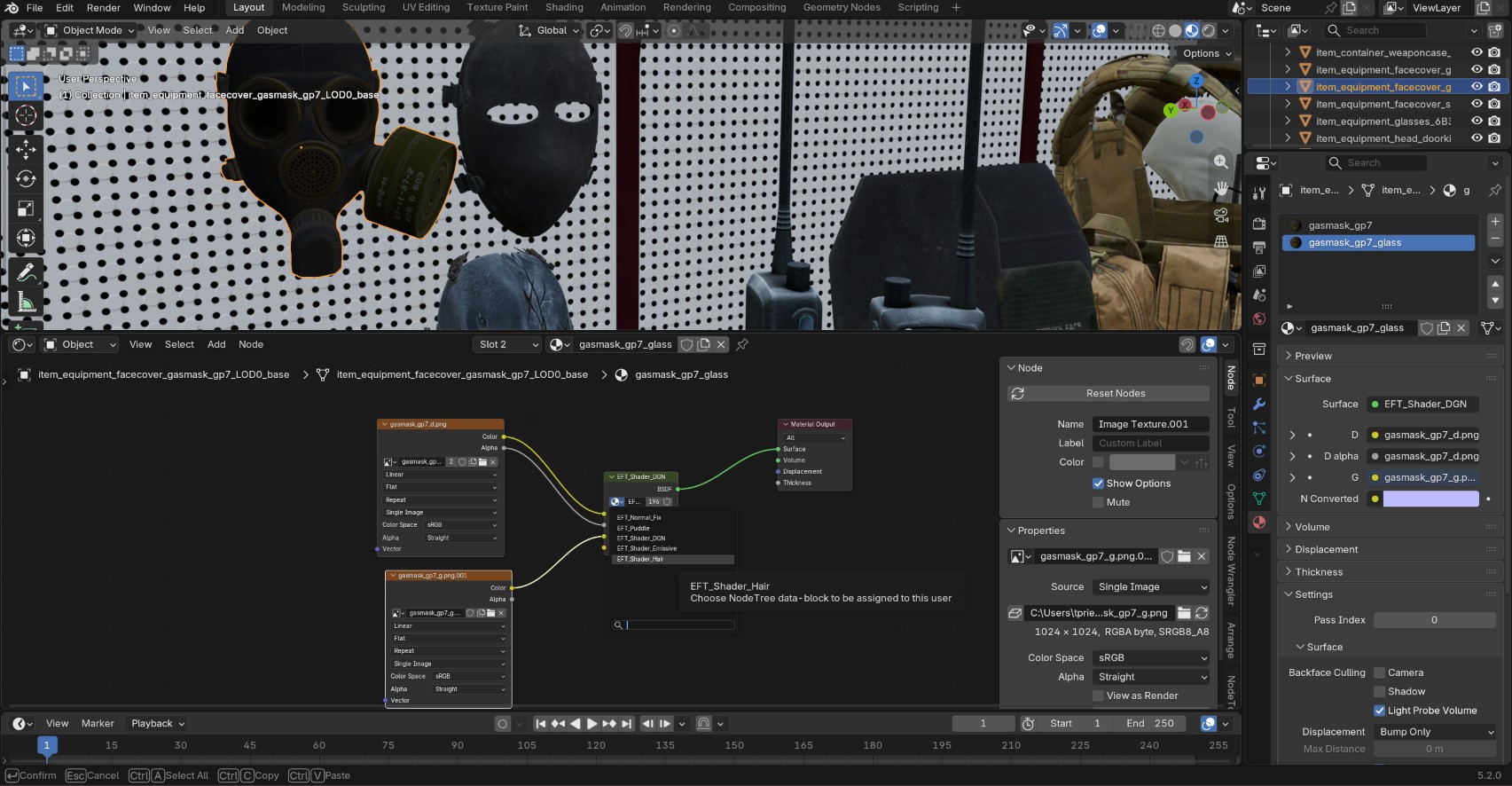
- Check for materials that should be transparent but are opaque. In this example scene the GP7 gas mask does not have transparent glass. In this case go to the glass material and change the central node from
EFT_Shader_DGNtoEFT_Shader_Hair.
Note
There is no way to detect which material is transparent and which is not, it’s basically hardcoded in the tarkdata.py file. I added every texture name I could find in the trader scenes, but you can also add yours in the
TRANSPARENT_NAMESlist if needed.
Do the same for emissive materials, for the same reasons they might not be detected correctly.
Add the lights to the scene. The EFT lights are quite saturated, so using the Blackbody colors is not necessarily the closest to the game lighting. I also like to add a cube with a Volume scatter to make the light rays visible.
Merge data (optional)
For big maps like Factory, the scene in contained in different level files. For performance reasons, it is more efficient to open each level file in separated blend files. Once the material setup is complete for each file, the sub-scenes can all be appended to a single, final blend file.
In that case, the custom node groups, as well as some textures and materials, will have duplicate versions of themselves. In the Tark to Blend panel, click Merge duplicate data to remove the duplicates and replace them with a single version of the node group/material/texture.
Result
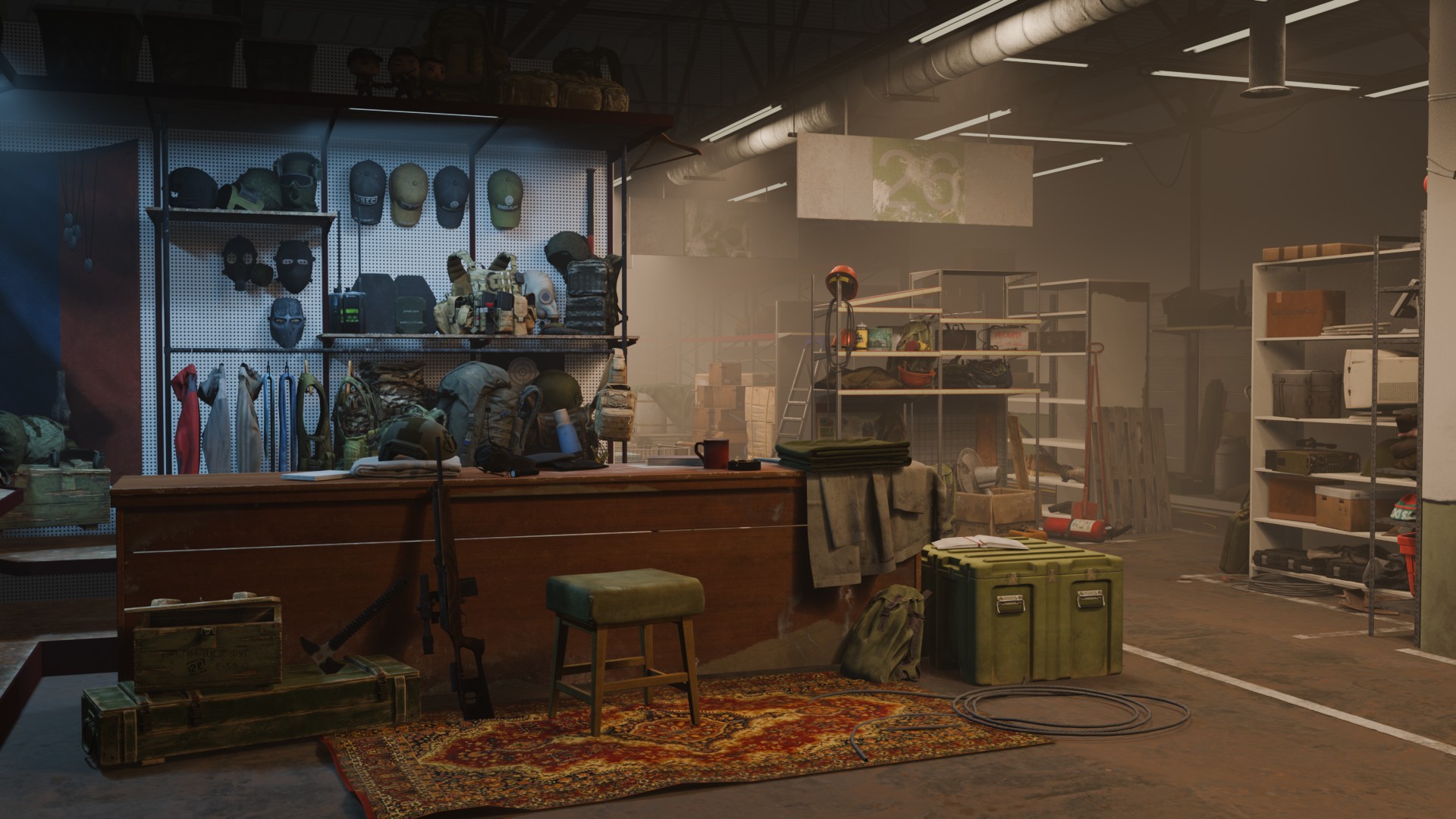
Here is an example of a final result :