Creating the interactive figure
3 minutes read
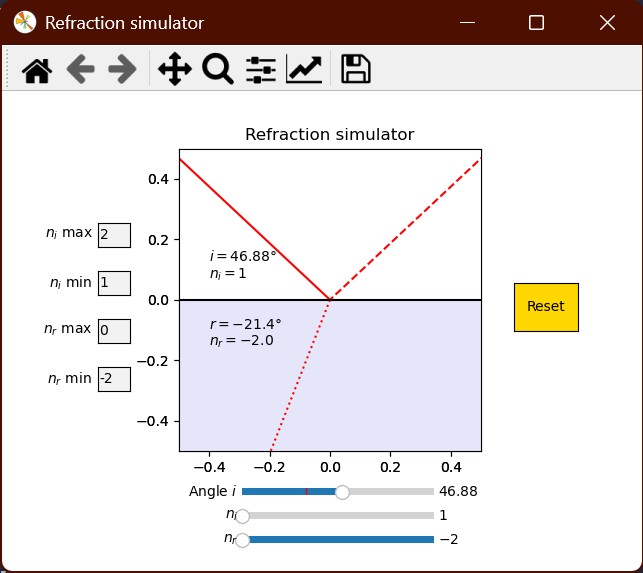
This is my first interactive figure in Python, and I mainly used NeuralNine’s tutorial for reference. But most tutorials do not explain what the objects you’re manipulating actually are, so I’ll try to explain it here.
Important
Interactive figures to not work if you print your plots in the console (inline plots). If you’re using Spyder, use Tools > Preferences > IPython Console > Plotting > Graphics Backend > Automatic to display your plots in a separate window.
Python modules
We will need the following Python modules in addition to the previous ones :
We will use :
- 3 sliders for $i$, $n_i$ and $n_r$ ;
- 4 text boxes to adjust the range of the sliders for $n_i$ and $n_r$ ;
- 1 button to reset the figure.
Initialization
In this part we simply define the default values of the figure, as well as values that are used to position the interactive elements.
, =
# Initial value
= 30 # degrees
= 1 # index of refraction
= 1.5
# Default slider range
= 1
= 2
= 1
= 4
# Slider dimensions
= .375
= .05
# Text box dimensions
= .15
= .375
= .05
, , , =
Compared to the previous figure, the plt.subplots_adjust(bottom=0.25) ensures we have some space below the figure to place our sliders.
Adding the interactive elements
Adding the interactive objects to the figure
This part is a little bit tedious. We have to create an ax object for each interactive object, which will define their position and size. Then, we define the interactive objects themselves on their respective ax objects.
# Sliders for angle and IORs
=
=
=
=
=
=
# Text boxes for the slider range
=
=
=
=
=
=
=
=
# Reset button
=
=
I also added an annotation which displays the angles and refractive indices :
=
=
=
=
=
= f
return
=
The f-strings are very useful for this kind of purpose. You can directly add variable values in strings by putting them inside brackets { }. In this case I also used TeX equation formatting by putting each line between dollar signs $ $.
We’re almost there ! Now we need to add the update functions.
Slider update
Remember when we made the plot_refraction function return three line objects ? It will be useful now.
We have previously defined a slider object. We will now define a update_slider function that will trigger the figure update each time the slider is moved, by using the on_changed method.
The beginning of the update_slider function simply gets the current slider value.
Warning
Using
ax.plotwill not work ! It will draw a new figure on top of the previous one. This is why we had to export the line data l_i, l_r and l_rx.
After calculating the new values, using the set_data method will update the line objects instead of drawing new ones. It works the same with set_text for the annotation.
# get current slider value
=
=
=
# calculate new values
,,, =
# update lines and annotation
return None
Reset button
This one is easy ! There is a reset method that resets the sliders.
return None
Slider range update
Here we use the set_xlim function to adjust the slider ranges. To get the value from the text boxes, we use the text method on the textbox objects. The output is a string, so it has to be converted to a float before using it.
=
=
=
=
return None
Results
It’s done ! Now we can visualize refraction, and even play around with exotic refractive indices.