Geometry nodes rays
3 minutes read
Node setup
It is possible to use geometry nodes to trace rays, calculate their trajectory, and then assign them a material following the method of the previous section. For this, I followed Andrea Ciani’s tutorial who explains how this works in detail (I will not describe it here because the node system is huge).
However, this setup (and most other tutorials) only supports reflection, and I added a few nodes to make it able to refract the rays, in parallel to the nodes used to calculate the reflection (I cannot show everything here, refer to the .blend file):
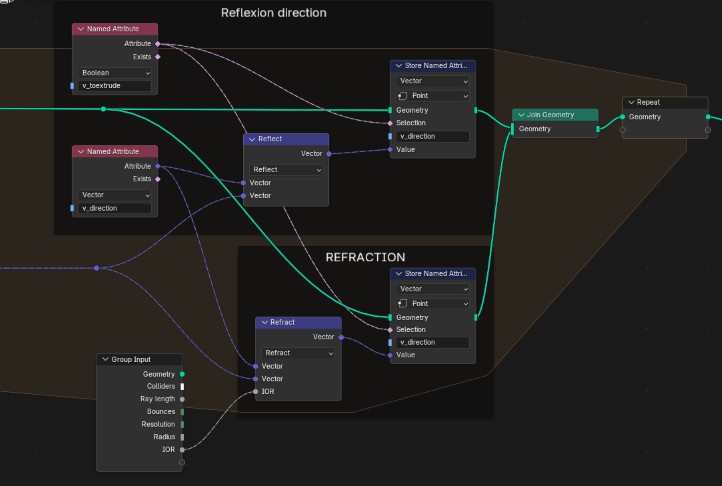
Blender conveniently has a Refract math vector node that I used. It takes the ratio of the refractive indices (IORs) to calculate refraction, which means that you would need to calculate it for each interface. Also, my node setup can only take one IOR as an input, so it is limited to only one realistic refraction. For a ray in vacuum entering then exiting a block of glass, this value should be 1.5/1 = 1.5 at the first interface, and 1/1.5 = 0.67 at the second, but this node system can only use one of these values for all interfaces.
Scene setup
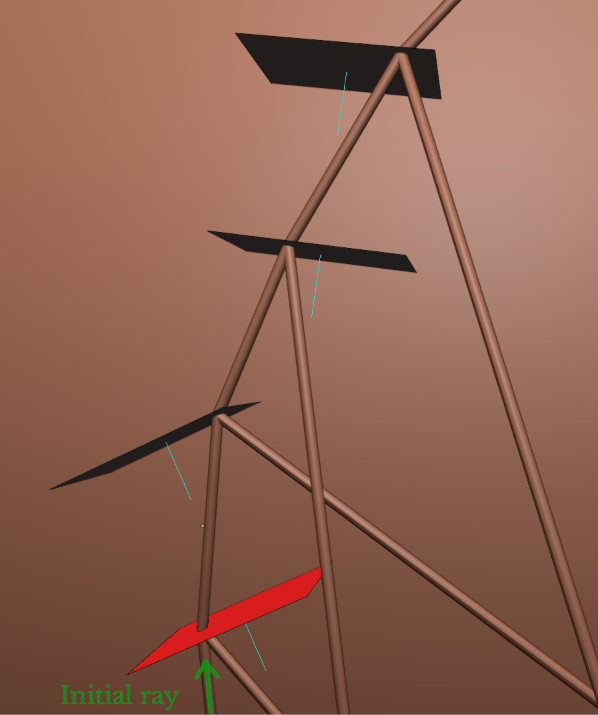
The main problem with this method is that the surface normals matter to calculate the reflection and the refraction, which means two sets of objects are needed : one set of invisible surfaces to calculate the rays, and one set of geometry to represent the objects that will be visible on the renders.
To make the scene, I first placed my visible objects, then I duplicated them, moved them in the Colliders collection and edited their normals to always face the incoming ray. The image below shows the scene with the colliders and their normals :
The following image was rendered with EEVEE :
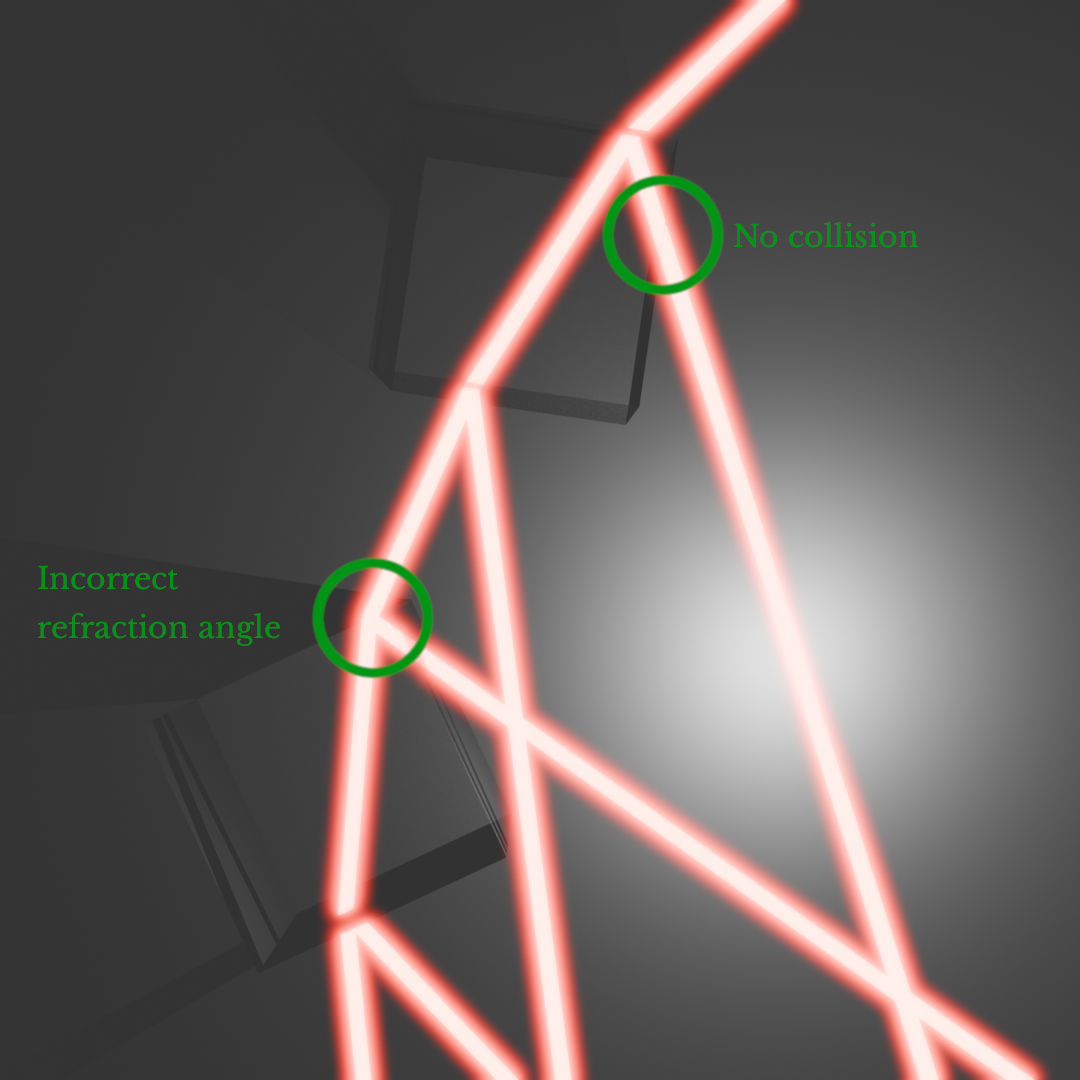
As you can see, the fixed IOR ratio causes an incorrect refraction angle at the second interface (the ray should have the same direction than the initial ray). A ray that crossed the visible geometry but without collider is visible on the top left.
Summary
Geometry nodes can be used to calculate rays and their interactions with several interfaces. This can be a fast process if it is used with EEVEE, but the system presented here only works for one interface.
| Pros | Cons |
|---|---|
| + Very fast and clean beams (geometry and EEVEE) | - Complex node system |
| + Good beam quality | - Requires specific scene setup |
| + Internal reflection is visible | - Would require a more complex setup to handle 2 interfaces and their IORs |